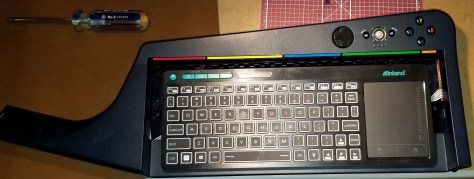
Category Archives: Cyberdeck

Project Update 11/6/19: The Scratchening

The Scratchening:

This last weekend I was attempting to “improve” my keytar case paint job.  There were some blobs of paint from how I had painted the first couple coats.  I thought I was following the advice of some other people (particularly the Cyberdeck discord, yes, it’s a thing).

Apparently I failed.

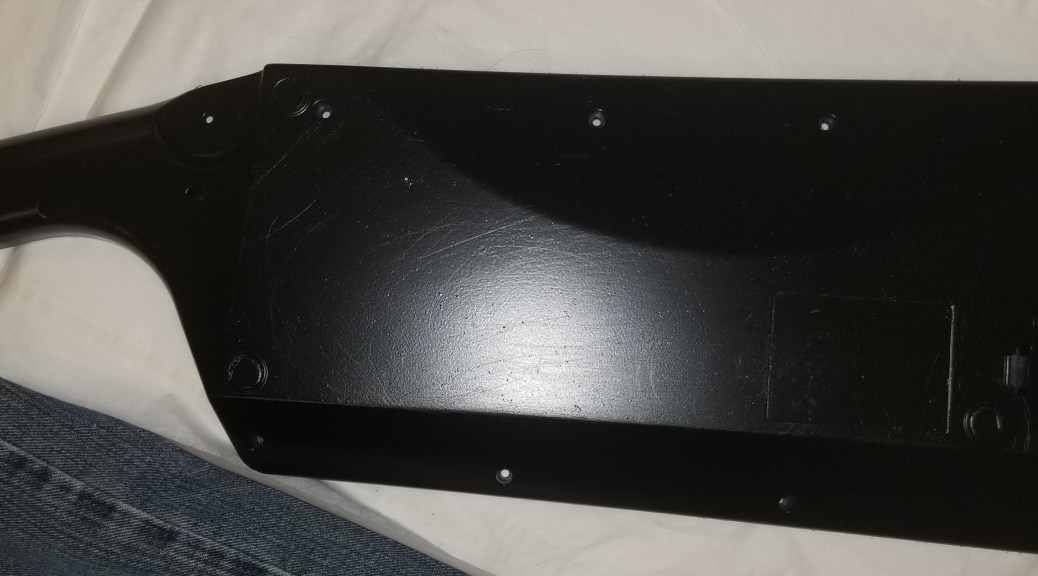
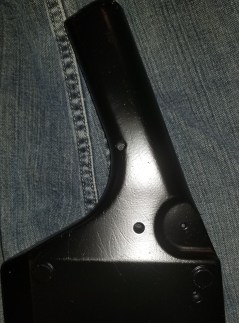
I sanded the case and parts, and put another coat of paint on… and now there are visible scratches.  I’ll have to sand it again… much more carefully, and then repaint.  I’m not sure how well it will show up in the photos.

20191106_194718

20191106_194800.jpg

20191106_194745.jpg

These are apparently not what was meant by “use coarse, medium, and fine sandpaper”.

20191105_075811.jpg

I’m still annoyed at myself, and per further elaborated advice, I’m going to re-sand the thing again with a series of finer grains of sandpaper on a proper sanding block.  “When you think you’re done, keep sanding.”


In other news:

Over the weekend I had to clean/lube/recalibrate my printer.  I had been noticing some layer shifts in some prints, and this was the easiest possibility for me to address.

20191030_080856.jpg

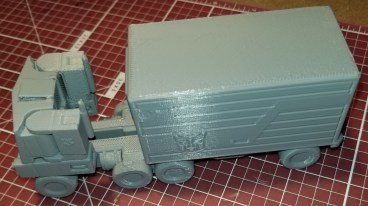
Seems to have worked, as my prints since then have been good so far.  I needed something to test a long print time on something with verticality to make it obvious if these shifts occurred again.  I decided to look for an appropriate Benchy, and someone had my back!

20191103_081219.jpg

Benchy-209 on Thingiverse

Optimus Prime!  As a no assembly required print!  I was in the mood for printing a robot, and thought to look him up.  He transforms!

20191103_183000

20191104_071320.jpg

Optimus Prime on Thingiverse

COM|POST: Quick Project Weekend in Review 10/28/19

So, I’ve apparently got a lot to log this week, which is both awesome (yay, stuff was accomplished!) and annoying (shards, I’ve gotta log all this stuff).

I’ll try got go through it pretty quickly, since it’s multiple projects, and not a lot of focus on any one project.

Keytar Progress:

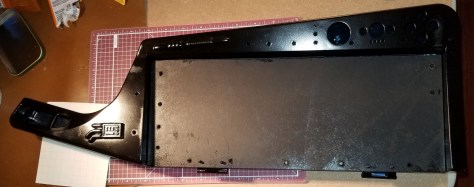
I finally found time to epoxy and prime my keytar.  I’m gonna need to get some sand paper to smooth out some parts I messed up on (I’m new to spraypainting).  Later I’ll put on another layer (I missed some stuff) or more.  Then it’s back to maybe sanding a bit, stickering, clear coating, and matte coating.  Here are a few images of where things stand now.

Keytar Parts.jpg

Keytar Whole.jpg

I’m still debating how I want to paint these greeblies.  Maybe a metallic color of some kind?

Greeblie1.jpg

Greeblie2.jpg

And here is what I’m thinking of for stickers at the moment.  I’ve got a bunch of other random stickers from a Ready Player One bundle that I’m considering layering under these, but I wonder whether I should do that, or if it might cause problems.  Also might cause these top stickers to not stand out as much.

Proposed Stickers.jpg


Costume Update:

I’ve been updating my Ghostbusters costume this year.  I’m able to fit into an actual jumpsuit this year, so I got one.  And it’s a bit too big on me (yaaaay for weight loss, but boooo, I was hoping for a good fit).  Still, at least I can wear it!  And I can (kinda) use one web belt instead of needing two.

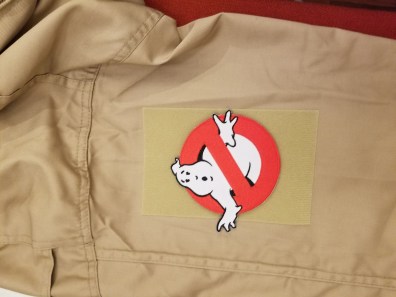
Anyway, new jumpsuit means I need to sew patches again… or if you are lazy like me (and know that you are gonna get another suit later) you attach them to Velcro for easy transfer.  Still had to sew the name patch onto the Velcro strip that came on the uniform, but just had to attach the adhesive Velcro panels for the logo patch.

Ghostbusters Patch.jpg

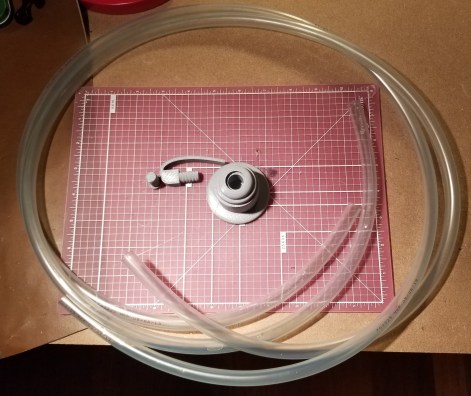
I also decided since I suddenly had free time to work on projects that I’d go a bit further, and make the connectors and tube that hang off the left side of the uniform.  3D models were available on Thingiverse here:

Ghostbusters Leg Hose Connector on Thingiverse

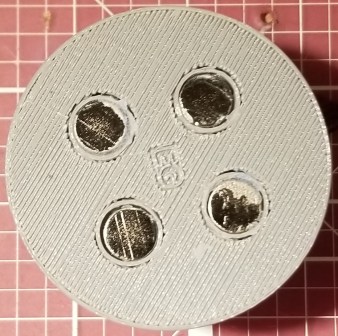
I printed that sucker out, ordered some magnets that I superglued in, and attempted to dye the hose.

Hose and connector.jpg

connector-magnets.jpg

The dyeing didn’t go too well, but at least it is slightly greenish, which was kinda my intent.  Yes, per the first movie they are supposed to be yellowish… but I didn’t like the catheter explanation for the tube that the color implies.  I went with the video game option that implies it has something to do with slime, and tried to dye it neon green.  I think I didn’t account for some things in the process.

Also, on the printer right now is the LifeGard II monitor that the Ghostbusters wear on their belts.  Apparently it was a thing firemen would wear that would alert people if the wearer wasn’t moving for an extended period of time.  Mine is nonfunctional, just a shell, but I like adding detail.  I’m having to do it at 80% scale because anything larger wouldn’t fit on my tiny printer.

Lifegard II 3D Model on Thingiverse


Random Printing:

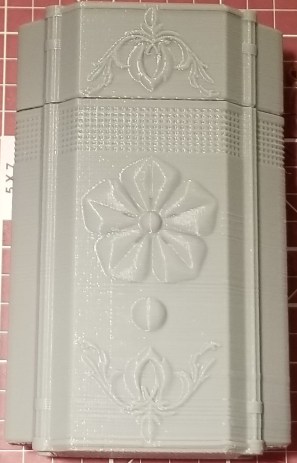
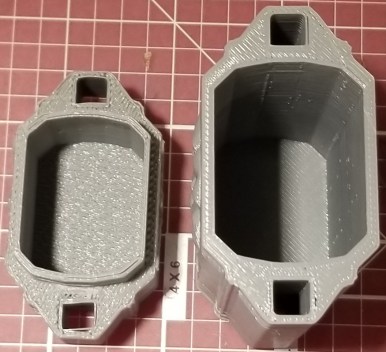
I can’t remember why or how I came across this box on Thingiverse, but I found it interesting, so I printed it.

inro-box-closed.jpg

Inro Top.jpg

inro-box-open.jpg

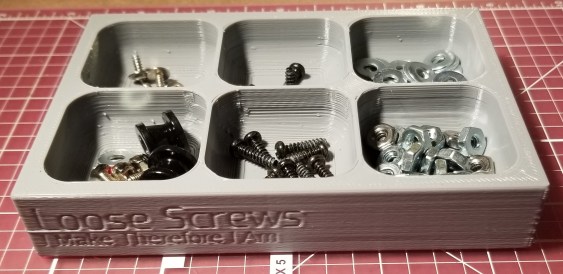
I also thought I could use a screw tray with all the screws I’ve been taking out of the keytar prior to painting, so I printed this one (after running it through the customizer) and used some of my extra magnets on it.  I was too frustrated with superglue at the moment (I forgot that it kinda spews when it’s first opened) so I just have painter’s tape holding it in the slots right now.

Screw Tray.jpg

Customizable Magnetic Screw Tray/Box (with optional lid) on Thingiverse


Gaming:

The Outer Worlds came out last Friday.  This game is AMAZING, and I’m already getting ideas of costume props that I would like to either find or create models for.  There are a lot of cool technological bits on the outfits in that game.

I think I may have to do a review of this at some point because I LOVE THIS GAME.  Briefly:  companion social interactions are believable and contribute to the narrative, I’m not constantly chasing weapon upgrades, and I’m not bogged down in junk collection.

PROJECT UPDATE 10/11/19: Test Assembly For Maker Faire

Soooo…. I need to check the Maker Faire website more frequently.  This past Sunday I was looking to see if there were any maker faires coming up at any point in the relatively near future.  Only one I saw… this upcoming Sunday!  It’s the Downtown Columbia Mini Maker Faire, in Columbia, Maryland.  Nothing else shows up on the map in my area right now, so it’s this or nothing for a while.

Enter panic mode.

I need to network and meet others in the hobby, so I’m definitely going.  I think it’d be better for conversations if I had something to show… but the only thing I had going on at the moment is the keytar project, and it’s not gonna be finished for a couple more weeks.  I’m waiting on my logo decal and I need a Saturday or Sunday morning to epoxy the greeblies and let it set for most of the day outside so I don’t fill my home with fumes.  Then letting it set, priming/painting, decals, and another few rounds of painting with clear layers.

Buuuut, I figured I could get it assembled (I had to quickly order some more parts) and have an early version of it on hand as a demonstration of what I do.  So that’s what I’ve been busy doing.

I went ahead and remade a couple of pieces to fix a couple of things I wasn’t happy with and add a grip to grab the keyboard more easily.  I also sanded and wiped down all the plastic parts I’m planning on painting, since I had already started the process.
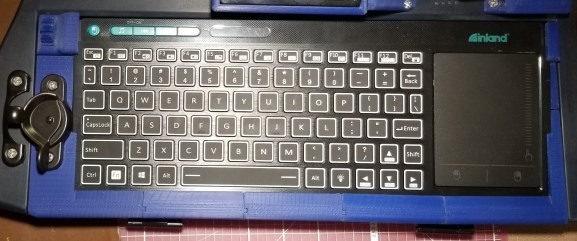
tray.jpg

Here’s a new reference photo for the retaining nuts, by the way.
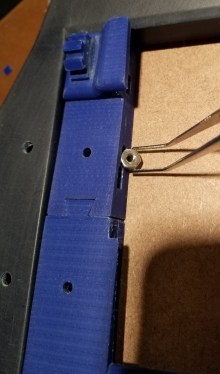
20191009_202608.jpg

I assembled as much as I could, waiting on the other parts to come in before dealing with the inevitable cabling issues.  I forgot how many little components needed to be added back in from the original keytar!  I had to go tracking them down from the various containers I had put them in.  I had forgotten about this thing and the button associated with it.
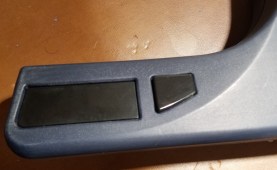
20191011_185752.jpg

Exterior

20191009_194737.jpg

Interior

This piece right here still needed some holes drilled and unnecessary parts trimmed off.
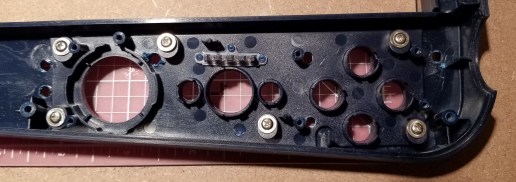
20191009_194731.jpg

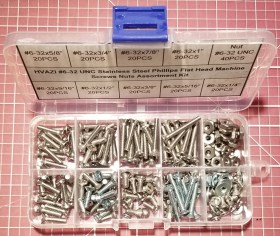
The screw assortment was a LIFESAVER!  DO NOT ATTEMPT THIS SORT OF BUILD WITHOUT IT!  I kept finding out that the screws that had worked previously didn’t always work the best, or interfered with changes that had been made since their original fitting.
20191010_215450.jpg

I ordered a belt amp and matching audio cable to connect to the keytar to continue the whole “decker disguised as a rocker” motif.

20191011_185908.jpg

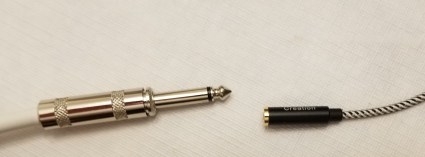
As some of you probably see coming, I forgot that those cables use a much larger connector.
20191008_223712.jpg

Facepalm

Amaz… I mean technosummoning to the rescue!  I ordered an adapter.  I checked to make sure it works by playing the Ghostbusters theme on my phone.  Works great!  Now I just have to figure out how to get comfortable with the other settings on the amp.

20191010_215533.jpg

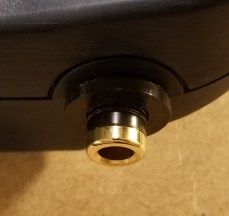
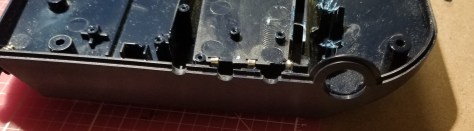
I’ve designed and printed a sleeve to interface the adapter into the case through the big hole that until now served no purpose on the case.
20191010_215558.jpg

20191010_215543.jpg

20191011_185801.jpg

For now I’m using a dab of hot glue to hold it in place.  I think I can remove it later for the paint job.  First time I’m actually using this particular hot glue gun.  Anyway, a bunch of tape, command strips, and screws later, I finished getting this assembled.
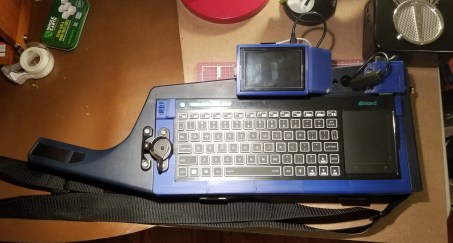
20191011_192337.jpg

Exterior

20191011_185808.jpg

Interior

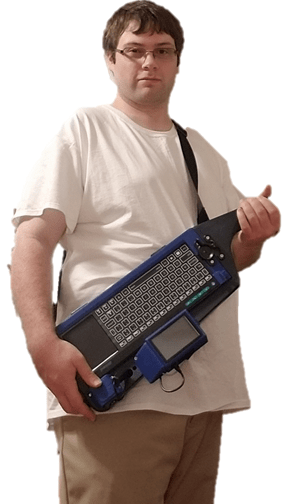
Me Holding Keytar.png

IT’S ALIVE!!!

Turns out this thing is heftier than I expected.  Main thing I’m trying to figure out I’m going to carry this while walking around.  It appears that the way the strap is mounted, if I just try to rotate the sling to the back the load directions change and cause the strap to slip off the knobs.  This might have to ride slung under my arm this trip.  Maybe later I can figure out a better way to carry it.  Right now I’m just hoping it doesn’t rain, because PLA can absorb water a bit, and the case overall isn’t sealed.

Anyway, I’ve got it put together, I’ve tested it with some music on the belt amp, and I’m trying to get everything together for going to a maker faire (maker coins, additional accessories, etc).  But at least I have something more to show than just claiming I do some 3D printing.  I hope to meet people at the faire, make some contacts, and maybe get some suggestions on how to solve a couple issues.


In other news:

I felt I needed another thing to have on display regarding 3D printing, and since I don’t have a booth of my own it needed to also be wearable.  Well… when I was thinking about it, I was watching Extreme Ghostbusters episodes, so I decided to make a miniature of the ghost trap Kylie wears on the back of her armor.

I didn’t see one on Thingiverse, so I decided to design one from scratch on Autodesk Fusion360.  Then I had to do a bit of splicing of files for the twist lock and belt clip.  It was supposed to come off easily for handing to people to look at, but it fits a bit too snugly and I don’t really have the time to adjust the connector.

Here’s the result:
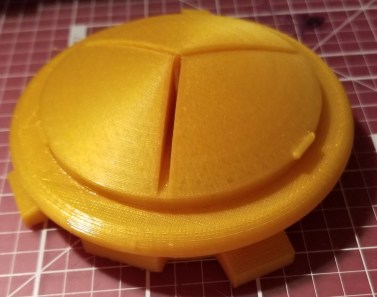
20191010_070707.jpg

20191011_190334.jpg

20191011_190342.jpg

Note, the parts for the connection are combined from other files, and they will be noted as such in the final Thingiverse entries.

20191011_190356.jpg

So, yeah, now I have something I can have on me to hand people to look at if they have questions or want an example.  And for any other Ghostbusters fans, I know some people are gonna disagree with the layout of the feet on the trap, but as an engineer looking at the reference picture I had, this is how they appeared to be laid out.  Three feet and a handle spread out as if there are 4 feet.

Project Update 09/30/19: Keytar Tray

This past weekend I finally drilled the holes and test fit the screws into the nuts hidden inside the backs of all the tray mount pieces.  Here’s how I have those concealed.

Retaining nuts.jpg

Retaining nuts

The screw hole is premade into the model, and there is a corresponding slot for the nut to slide into.  The slot is shaped to prevent it from turning.  With all these bits installed, here’s the keyboard held in it’s tray for ease of access to the inside of the case.

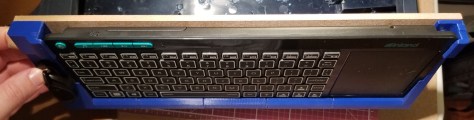
Keyboard in tray.jpg

Keyboard in tray… finally

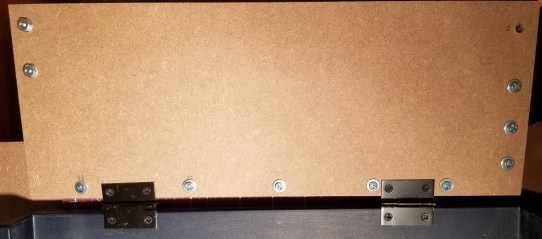
For reference, here’s what the backside of some of the pieces look like.  The groove at the bottom is to match the screws that punch through for the hinges.  You can also see a couple of the screw holes.  I was gonna show more… but I really don’t feel like disassembling the whole tray right now.

20191003_203523.jpg

A couple of these holes weren’t centered quite correctly, but conveniently I was able to gently carve out the holes in the direction I needed to shift them with my 3D printing chisels.  Well… except apparently I misaligned one of the holes within a 3D printed component with the retaining nut slot, but the piece seems on solidly enough without it.  If I care enough to later I will fix the model and replace the component.  The way I’ve designed it I can replace individual parts later.

20191003_203200.jpg

The back of the tray with my adjustment marks.

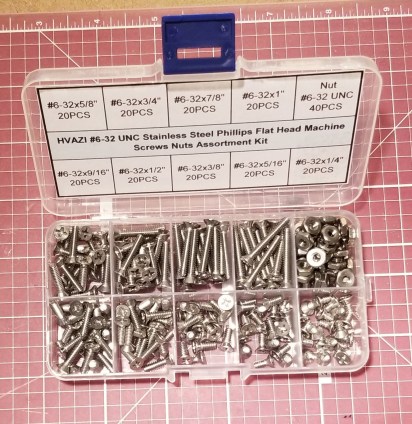
Turns out I was still missing some screws earlier this week, and I got fed up with getting screws piecemeal when I’m always using #6-32 machine screws.  So, through great technomancy (Amazon) I summoned this kit.  It’s got everything I could possibly need in #6-32 machine screws.

Screw Case.jpg

I’m sorry Home Depot, but we’re not exclusive

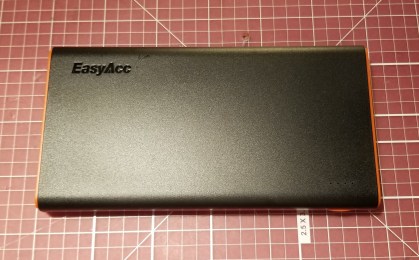
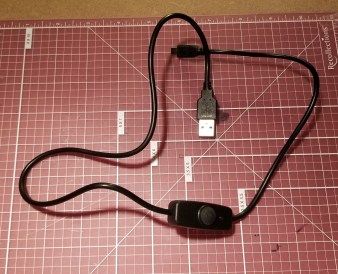
I also tried yet again to fix the underpower issue with the Pi itself.  I ordered this battery, and a cable with inline switch that is specifically supposed to be for a Raspberry Pi.  For a little while it seemed to work… and then I started seeing that annoying lightning bolt again.  This battery is supposed to have smart output of 5V and up to 3.1A (depending on what is attached), but it still showed a power warning.  For reference, a Pi is supposed to use 5V and 2.5A.  It may be because I had another peripheral (a thumb drive) installed at the time.

New Battery.jpg

New Battery

Pi Switch.jpg

New Cable

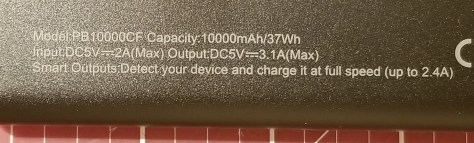
In the middle of editing this, while taking photos, I noticed this on the back.

20191003_203017.jpg

D’oh!  This appears to have a 2.4A limit per port like some of the others.

Facepalm.jpg

Anywaaay, I’m gonna keep tweaking this thing, and see if it has something to do with a USB drive being plugged in or a change I made in the OS a while back that was supposed to use more onboard memory on the Pi rather than on the SD card.

Wish me luck!  Or, better yet, if you have any suggestions on mobile power supplies for Raspberry Pis (that don’t involve adding a hat inside the semi-sealed case of the Pi), please let me know.


In other news:

Still playing through Borderlands 3 as Moze.  Kinda hard to say no to having my own mech.  I bet you can guess my main in Overwatch back when I played.

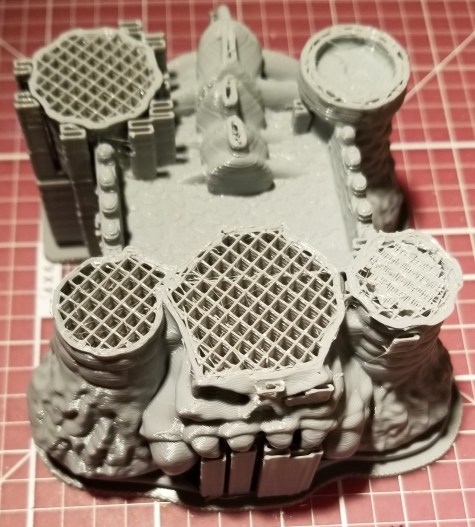
I think my filament spool had a couple discontinuities in it.  I was trying to do a long print overnight this week, and this was the result.

20191001_081424.jpg

No power of Greyskull.  I am le sad.

I assumed that the filament had tangled and snapped.  When I went to unsnag the spool of filament… I found this:

Discontinuity.jpg

A segment of filament that was disconnected on both ends.  Makes me wonder if I had a faulty spool and just hadn’t come across the break in the section yet.


Side lessons:

Don’t ever get attached to a character in Dungeon Crawl Classics, they will die unexpectedly.  And I’m not just talking the level 0s you would expect to die.  I think I’m gonna adopt the Goblin Slayer Abridged method in the future.

NO NAMES

PROJECT UPDATE 09/25/19: The Return of the Keytar

Okay, so it’s been a while since I had made some progress on my keytar cyberdeck build, mostly because my 3D printer had broken down and I had to send it in for replacement.  As seen in last week’s post, I have the printer back and I was testing it out with some other prints that I’d been wanting to do.

This week I’ve printed the remaining components for the tray mount, most of which had been waiting on the SD card already.  Except that bottom middle piece…. I had to shave 2.53 millimeters off of the model, re-export, re-slice, and re-print it.  Oh well, more experience in modifying parts in Fusion 360.  I’ve been learning a lot about that program while using it… including that it sucks when they run an update to change the interface at inopportune times!

To make sure the finish quality was as good as possible I printed these parts at the same settings I used for printing miniatures.  Takes longer, but it was higher density, thinner layers, etc.

Now I’ve got to figure out how I want to measure where to drill the holes, then continue the litany of things to do (order more stickers, redesign the power system, prime, sand,  sticker, clear coat, matte coat, assemble).

By the way, if anyone happens to be interested in looking at the models, I’ve posted them on thingiverse here with a really lengthy name:
https://www.thingiverse.com/thing:3880609

I should note that these files would need tweaking if anybody else were to print these.  The tolerances make the connecting bits fit loosely.  They’re more like guidelines to help get the parts where they need to be, but not a solid fit.  By the time I realized it I was very much not interested in going through every connection point and adjusting.  I’ll add that to my mental lessons learned folder: design test fit parts for the connections before going into full production mode.  Just make the connection you are trying to test and a bit of material to be able to handle it for testing.

Project Update 07/16/19: Raspberry Pi Keytar; Secondary Cover

The casemod continues.  As I mentioned last week, I designed a secondary cover for the Raspberry Pi.  Here’s the Version 1 I mentioned messing up last week.  If you look at it, you’ll notice that the main case has rounded edges, the secondary case has straight lines.  This bugged me.  I continued the print for purposes of fit check and everything.

Top View v1.jpg

Below is what I’m going for with the case.  You’ll notice the rounded edges to match the overall feel of the case.  I’m actually not sure whether this is the version 2 or the version 3 of it in this picture, as the differences are not visible from this angle.

Top View v2.jpg

Here’s how it connects, btw:

20190715_195346.jpg

20190715_195401.jpg

For comparison of the versions, I’ve added the pictures below.  The main difference between the version 2 and the version 3 was that I forgot to include a very important hole.

20190715_195203.jpg

20190715_195223.jpg

20190715_195241.jpg

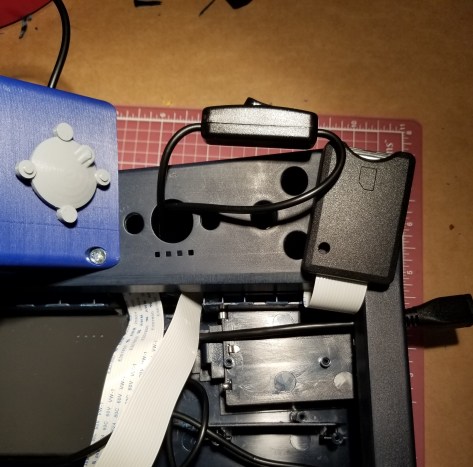
Going from version 1 to version 2 I had added a piece to fill the gap that had existed in the portion that was overhanging the edge of the case.  I didn’t want stuff getting into the cover or into the case.  However… that gap is where I had been routing the power cable, and I had forgotten to add a hole for the power cable to leave the case.  So, pretty much the only change was adding a hole so that the cable could come out of the case.  Now that I’ve done that, I took the time to drill the holes to install the case on the keytar.  Here’s what it looked like.

Test Install.jpg

Top Back of Install.jpg

Back of Install 2.jpg

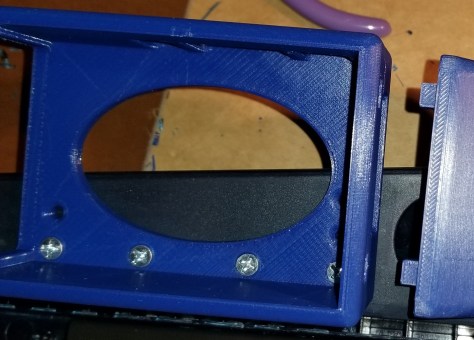
Note:  In this last image you can see more of the Pi’s case exposed, despite me saying I was trying to seal up the case.  That oval hole in the case serves two purposes, 1) to allow air circulation for the computer, and 2) I can carefully push the Pi out of the outer case if I ever need to access it or the screws underneath it.

I relearned a couple lessons in the process of drilling the holes that should have been obvious.

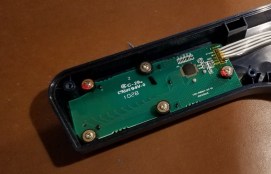
  1.  CHECK THE BACK SIDE OF THINGS YOU ARE ABOUT TO DRILL.  Especially when it’s into a case that you didn’t design/build yourself.  There were some connectors for holding the upper and lower portions of the keytar itself together that I may have messed up.  I did notice a few spots when I got partway into it that I very nearly damaged important pieces.
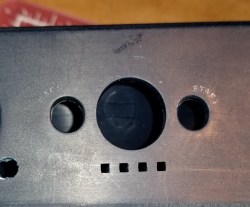
  2. CHECK WHAT STUFF YOU’VE REMOVED THAT YOU PLAN TO PUT BACK.  There is a piece that originally held the buttons into the case that I will need to put back before I close the whole thing up, as it contains a few clear pieces that precisely fill in some holes on the case.  I had to temporarily put it back in in order to drill another hole so I can put the screw for the secondary case all the way through later.  I also discovered that I will need longer screws so that it (and some components to be printed/installed later) can pass all the way through.

Here is the spot I was mentioning in lesson 2.  The holes to be filled in, the piece to replace, and what they look like together.  It’s a really important part, especially since I’m trying to keep the case as closed as possible.  Also, with those clear parts I might be able to put a light behind them later.  I thought I was going to be painting before long, so I had removed it.

20190715_200121.jpg

20190715_200140.jpg

20190715_200200.jpg

Anyway, at some point I decided that the case was a bit too plain, and could use a greeblie (I had to ask around to be reminded of the term for this), and what better greeblie to start with than the Universal Greeblie?

Adam Savage explains it well here.  It’s fun learning these things as I go along!

The stl I used for the greeblie was from here:

Universal Greeblie on Thingiverse

The nice thing about it being a STL file is that I could make it any size I could print!  So, I upscaled it, and this is the result:

Universal Greeblie 2.jpg

I’m gonna superglue that sucker on later (it’s just held on by a bit of hidden tape for now) and then paint it with the rest of the case.  I like the extra bit of detail, and I might have to find some more types of greeblies to install elsewhere on the case.

Before I forget, I added a little bit to the wiring, but it was mostly plug and play, so I almost didn’t include anything about it.  I added a short micro-USB cable to the exterior of the case through one of the pre-existing holes, and a switch in-line between the power bank and the pi.  I still need to figure out how I want to mount it, though I guess that depends on whether I keep this power system.  It currently gives an undervoltage warning, even if I try to pass wall power through the power bank.

20190715_204709.jpg

I also tried printing a small, angled SD card holder to fit inside the case (I plan on storing backup/alternate OS SD cards in the case)… but apparently the person who posted the model had scaled it up to be too big.  I’ll have to find a new one, rescale this one, or create one of my own at a later time.  It’s an internal detail that is subject to whether I decide to redo the power system, so it’s not urgent.

The Path Forward:

I’m still trying to get a a piece of material cut for the keyboard tray.  Until that is done I can’t really start on designing the pieces to hold the keyboard to the tray and add the latches to hold the tray shut.  I’m also not painting anything until I have most or all of the pieces so I don’t have to paint on multiple occasions.

I think the next thing on my list is figuring out how I want to design the holder for the SD card reader, and how I want to mount the power switch to the case.

Project Update 07/08/19: Raspberry Pi Keytar

I’ve been continuing working on the keytar casemod project.  Recently I got out my Dremel and some of the chisels I use for 3D print cleanup, and removed some of the internal structure of the case so I can fit a power supply in (a power bank in this case) and get the wires to cross from the keyboard compartment to the controls compartment.  The latter gap is located just up and to the right of the power bank.

Power Bank Removed Structure.jpg

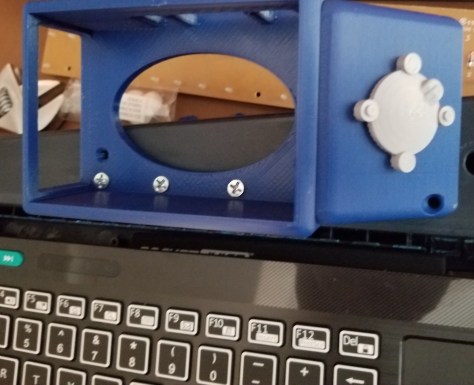
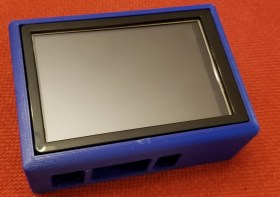
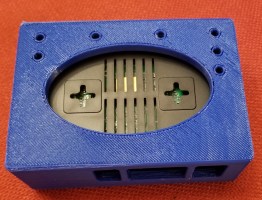
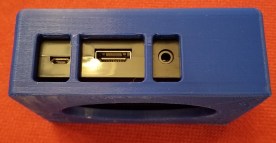
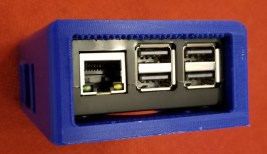
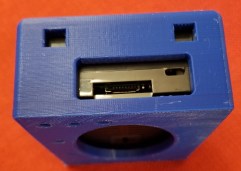
I’ve further refined, published, and printed the “case case” for the Raspberry Pi, adding the holes for mounting the case to the keytar, and holes to later mate a cover for the wires coming out of the keytar.

The STL is located here on Thingiverse:
Raspberry Pi 3 B+ Case Case

You can see closeups of the case from all angles below (I apologize for the formatting):

Screen Closeup.jpg

Bottom.jpg

Power and HDMI.jpg

 Bare Side.jpg

USB Ports.jpg

SD Card Port.jpg

I’ve recently designed a part using the holes in the last picture to cover where the SD extension cord comes out of the keytar and into the Pi.  It is currently on the printer.

D’oh!  I just realized that I never rounded the corners on that piece to match the other case.  And apparently it’s not evened out in the interior.  Oh well, this is gonna be a bit inconsistent.  Maybe I’ll print a version 2 that is neater later.

I’ve also recently tried to start changing some parameters within the Pi’s programming itself, using a guide I have on increasing the performance of the Pi.  The main thing so far has been attempting to move some of the functions onto the RAM internal to the Pi.  However, this seems to have caused the odd side effect (though it may be coincidence) of causing the system to start showing an undervolt message while on battery power, despite seeming to have worked fine before.  More experimentation is required!

I’m still trying to get material for the keyboard tray, but so far I haven’t had much luck finding a place that will cut the material I want (masonite/hardboard) to the dimensions I want (5.25 inches x 14 inches) with any precision.  I don’t want to cut this myself, as I’d need to purchase or rent more tools… and unless I get a lot of stuff to help guide the cut, I have trouble cutting a straight line if I go anywhere close to freehanding it.

Well, this definitely proves to me that I need to continue blogging while I do this project.  By trying to explain and show what I’m doing, I’m re-examining it and figuring things out.  If I ever do manage to finish this thing, hopefully I’ll come back and write a more coherent article on this process, but for now you get to come along on the ride for this.

Reasonable suggestions would definitely be welcome!

Project Update 07/04/19: Raspberry Pi Keytar

I’ve been a bit busy lately, but I am gradually making progress.

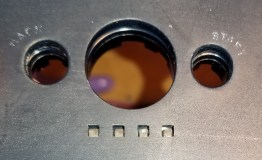
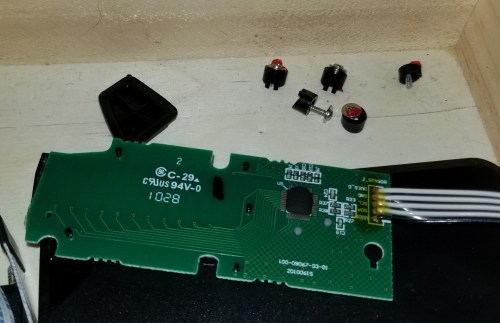
After the last update, I realized I had more components that I might be keeping, but needed to remove for when I paint the case.  I think this bit was some sort of capacitive input for they keytar.  I’m keeping it 1) because i need something to plug the whole it was in and 2) because I’d like to see if I could figure out how to use it for something one day.Capacitive Bar.jpg

Buttons to plug holes and/or be reused.Buttons.jpg

Here’s what the case looks like with most of the components removed.

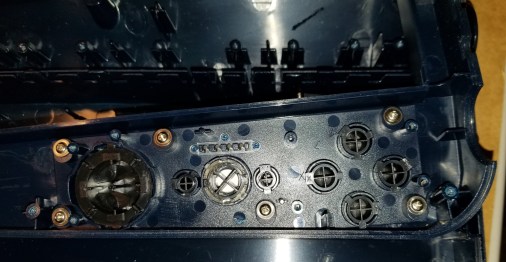
Buttons Removed.jpg

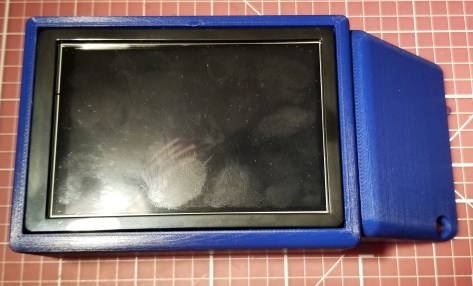
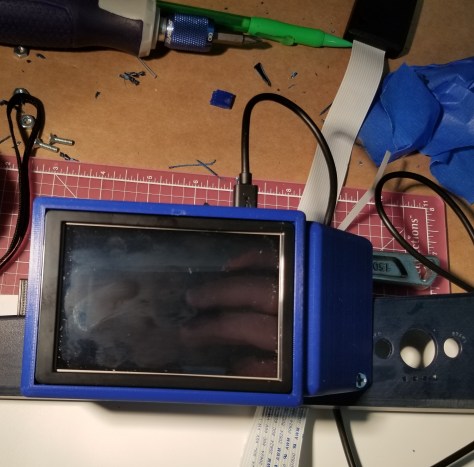
I’ve also been taking a look at layout for the components with the Raspberry Pi, and finally gotten a screen to work.  I had to trade in the screen I had, and then order a combination of screen and case specifically for the Raspberry Pi 3 B+.

Working Pi.jpg

While I had the time on the 4th of July, I’ve also started working on some other things.  Here is picture of the current draft of my holder for the Pi inside it’s case.  I’ve been designing it in AutoDesk Fusion 360.  It’s supposed to allow me to put the Pi on the keytar while still being able to remove it if necessary, and allow for airflow.  I still need to figure out where I want to put the screws to mount it to the overall case, and put the appropriate holes in this case and the keytar.

Pi Holder.jpg

I also stopped by Home Depot to pick up parts so I could make some progress… and I need to do some rethinking.  I eyeballed the part I was planning to use for the keyboard tray.  Let’s just say… it’s thicker than I thought and the space for it is shallower than I thought.  I really should have measured that and taken it with me.  Now the top of the keyboard extends above the keytar case instead of being within it.  I need to pick a different material (I’m currently using PVC board) and get it cut to fit.  I guess I’ll just put something to cover up where the hinge screws are going to punch through, unless I decide to keep the ridiculously thick tray.

keyboard tray fail.jpg

If I keep it, here’s what it looks like.

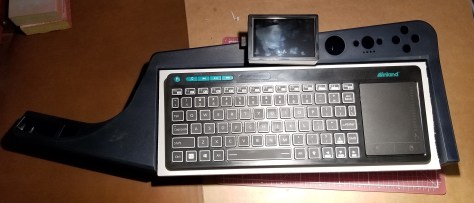
current look.jpg

I have already slightly sanded the exterior to aid in later repainting, and I’ve got the paints on standby.  Black paint/primer, glossy clear coat, and matte clear coat.  I’m still deciding whether I want the eventual stickers to be sealed in by the clear coats, or to put them on the exterior of all the paint like it would normally be done.

Upcoming work:

Making up my mind on and purchasing the components for the internal electronics.

Figuring out how to have the power wires exit the case.

Completing the design of the screen holder and 3d printing it.  The design still needs screw holes, mounting points for a cover for the ribbon cable and the hole the wires are coming out of, and possibly a wedge of material to be attached as additional support behind the computer in the area where it overhangs the case.


Raspberry Pi Keytar

As you’ve seen references to before, I’ve been fiddling with a Raspberry Pi.  I was gonna use the case I posted, but the case is not designed well, and I decided to go another route.

I’ve going through a lot of cyberpunk stuff lately, so I thought I’d make my own “cyberdeck,” or at least a semi-functional prop of one.    I figured the idea would be that a decker or console cowboy character might want to be able to somewhat hide in plain sight… at least in a cyberpunk world.  In this heavily 80s inspired environment, they might try to hide their portable cyberdeck as an instrument for when they need to duck into a crowd and disappear.  What better instrument than a keytar?

I did some looking around, and I couldn’t find a keytar within a price range that I’d feel comfortable tearing it apart.  Also, it needed to have just enough space for the keyboard I had already gotten for the Pi.  I did find this, a keytar controller built for the rockband games.  Not even $30 at a secondhand store.

Unopened Keytar

Conveniently, it came with a strap for carrying.Keytar Strap.jpg

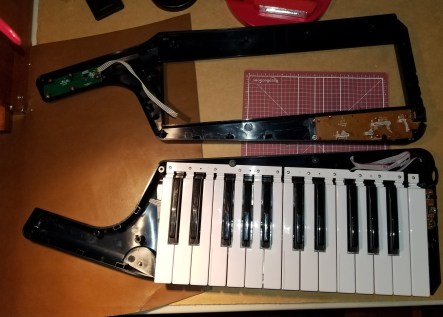
Here’s the case with the cover off.  I had to cut some of the wires to get it open.  They must have snapped the connectors in while closing it up, but I was unable to pull them apart, and I’m not planning on reusing most of them.  The ones I thought I might try to figure out later I cut, but left a lot of wire dangling.

20190624_193621.jpg

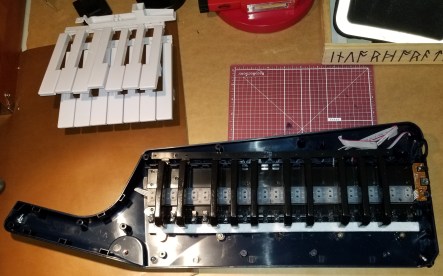
Here is the case with the white keys removed.  Starting to reveal some of the underlying components.

White Keys Removed.jpg

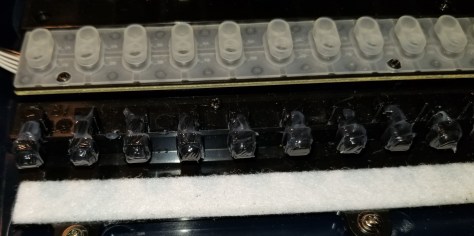
This part threw me off.  Apparently the keys had some sort of silicone based lubricant on them, which.  I wasn’t so sure about it, so I used gloves to remove some of the internal components.

Lubricant.jpg

Like I said, gloves.  I didn’t want to mess around with it.

20190624_194658.jpg

Here is the case closed back up after removing most components.  The components that remain attached are ones I’m considering keeping or modifying for the casemod.

20190624_195646.jpg

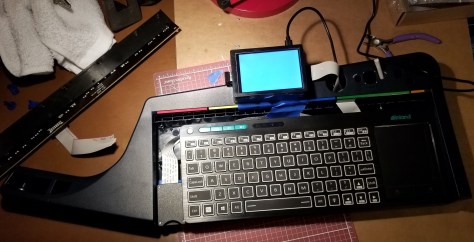
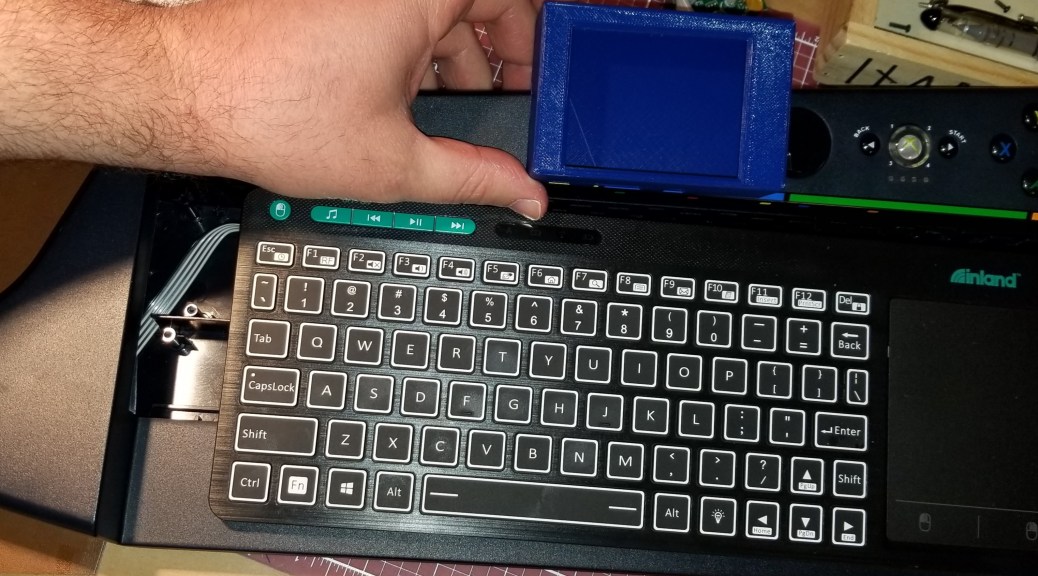
Here’s the case with just the keyboard in it.  It’s loose, but I think I can fab up some pieces to hold the keyboard in place.

20190624_195724.jpg

Now that I’ve ripped the case open, here’s the general arrangement I’m trying to get to.

Concept Arrangement.jpg

I’ve still got quite a long way to go, and I’m figuring out a lot as I go along.  I’m going to be asking around in my circles to figure things as I go.  I’m just learning the Pi, so that’s becoming an interesting journey by itself, and I haven’t done much painting or casemodding before.  This thing is probably going to come out rough, but I think I’m gonna have fun with it.  One of the hard parts is going to be remembering “better is the enemy of good enough.”  I keep thinking of more things that could be done on it, and I’m having to make myself write a list labelled “MK II.”