Category Archives: Virtual Reality

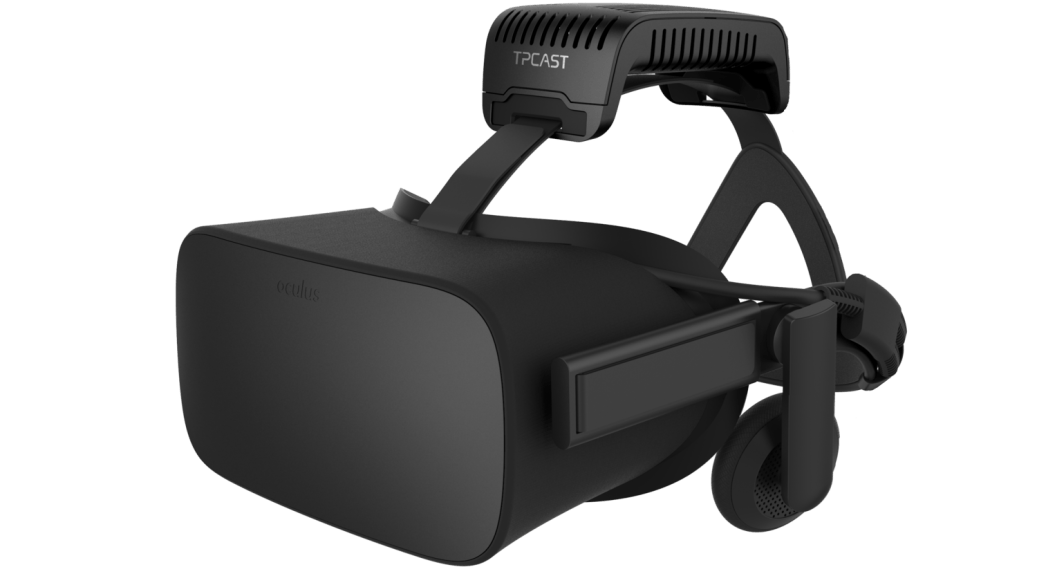
VR Horizon: TPCAST Wireless Adapter For Oculus Rift

I was browsing around the internet, and was reminded that this is a thing.

TPCAST Wireless Adapter

It’s a wireless adapter that removes the need for entangling cables with VR, with the tradeoffs (that I know of) being:

  1. Additional cost (it’s listed at $319 at the moment on the manufacturer’s website)
  2. Added weight on your head
  3. You have an external transmitter pointed at you, if you worry about that sort of thing

It comes in three parts:

  1. PC Transmitter module
  2. RX Module
  3. Power box

The transmitter module streams the data to your headset, the receiver receives the transmission and sends it into the headset itself, and the powerbox that recharges the battery.

The battery appears to have a 5 hour power supply, so that’s more than my usual VR time.  I’m not sure how heavy it is, though.

At the time of writing, they are out of stock at the manufacturer’s website, so I likely won’t be ordering one anytime soon.  I see it listed elsewhere… for more than $200 additional!  Eventually, though, going wireless could be worth the cost.  When I’m on the treadmill I’m constantly getting tangled up in the wire when I turn a lot, and dealing with the headset wires in general is a pain.  Also, the systems I’ve seen for suspending the cable would require me to put screws in the ceiling, which I’m not inclined to do.  If it were a plain ceiling, I wouldn’t care, but I don’t want to risk doing excess damage to the textured ceiling.

From the reviews I’m seeing, there are many issues with the base version, and an upgraded 3rd party software (Open TPCast) takes a bit more money and work to get working, but is apparently worth it.  The base version has latency issues, dropped frames, and the microphone stops working.  The upgraded version requires buying and downloading additional software, then installing it on to a microSD card hidden inside the battery pack’s casing.

Still, it’s something to consider for the future.

VR Rig Upgrades: SSD Capacity

An issue I’ve been fumbling around with for a few months now is upgrading my VR rig with a new Solid State Drive (SSD).  I had originally mounted it in a hot swap port on my PC (and had to create a case over it to protect it).  However, it eventually made my PC unstable, and I had to remove it and send it in for warranty replacement.

The replacement came in a few weeks ago, and this time I decided to install it as a replacement for the existing SSD inside the computer.  When I had had my PC built years ago, the computer was built with an SSD to run the operating system and some programs, as it would make them load a lot faster than on a standard hard disk drive.  This was fine.  However, it has filled up over time, despite me installing most things to the hard drive instead.  I had kind of reached a stable maximum on that drive.

The problem was that the load times for games was getting rather lengthy in newer games, largely in part to the time it takes to read the data off of the hard disk.  In regular games, it’s no big deal, but in VR, load times make a HUGE difference.  You are sitting or standing there, blind to the world, with very little input except whatever loading screen the game designer had incorporated… and they didn’t always think those through (holy crap, the glare of a bright logo in a dark background is miserable).

This is why I had bought the new SSD in the first place, to add a terabyte of storage space to transfer all my VR games to.  Anyway, this time I decided to just replace my old SSD with it, and move everything over.  This is where I had gotten stuck until I did some research and talked with a few people I know who are more knowledgeable in this area.  I finally got it to work this past weekend, and I’ve been trying to tweak and move stuff since then.

Here are the main things I wish I had known more quickly going into this.  I know this is not going to be the best detail, but it should be enough to help you find the rest of the information more quickly.  I was doing this over the period of a few weeks, and I wasn’t exactly taking notes.

  1.  When you first plug in a new SSD, you will have to initialize the disk. You have to have it plugged in, and access compmgmt.msc through the cmd prompt.
  2. While you are there, make note of all the details of the partitions that are currently on your main SSD.
  3. You will need another hard drive with space larger than the SSD you are upgrading from.
  4. You will need Acronis software, and a thumb drive to run it’s software from.  Use this to backup the original SSD onto the extra hard drive.
  5. You will need another thumb drive.  Use the tools that come with Windows to make a repair disk on this thumb drive.
  6. Turn off the computer, and use standard computer modding procedures (turn it off, unplug everything, ground yourself, etc) to swap out the SSDs, leaving the original disconnected.  Put everything back together.
  7. Using the Acronis software on the flash drive, and the hard drive you made the backup to, restore the image of the original SSD onto the new one using CUSTOM settings.  You will want to set the system and recovery partitions on the new SSD to the same size as the original, and expand the size of the C: drive partition to fill up the rest of the space on the drive.
  8. When you try to boot your computer afterwards, it won’t work.  You haven’t done anything wrong, the Windows OS apparently uses references not just to the pathname of the drive but references to the specific drive hardware it is running on.  You will need to shut down the computer, swap out the Acronis software drive for the Windows Repair drive, and reboot the computer.  The repair software will fix the install itself.
  9. Now that it’s working, you may still have some cleanup to do.  If you have been running games from your hard drive, you will want to move the installs.
    1. Oculus:  Thankfully, in more recent updates since when I previously tried to install the SSD, the Oculus software has added an option for being able to move installs from one location to another.  Use it to create a new game install location on the SSD and then move all your VR games over from within Oculus.  DO NOT TRY TO MOVE THE FILES MANUALLY.  It appears that Oculus software does not acknowledge files that are already within the correct folder unless Oculus moved it there in the first place.
    2. Steam: For Steam, you use the software to define a new install location, then move the files from their old location to the new one, and try to run the game.  Steam will get confused for a bit, but then track down where the current install is and run from there.

So, that’s the gist of what I did.  I know it’s lacking in the technical details, but hopefully it will be enough to help you track down the latest info on how to swap an SSD out for a larger one if you need to.  I didn’t know enough about some of these concepts when I started to realize that some of those steps were even a thing.

Less loading time, and more game time for me!

Update: 12/31/2018

I’ve added two pages, listing the VR games/programs that are listed in my Oculus and Steam libraries.  They are accessible via the VR Gaming page, and links here:

Full List of Oculus Store Titles

Full List of Steam Store Titles


Feel free to ask me for more information/reviews on these titles.  I may have to reinstall them to refresh my memory or retry them, but I might be able to give you more information before you decide whether to buy them.

USB Port Issues

For quite a while now, though apparently I haven’t been looking for it most of the time, I’ve been receiving messages on my computer about a lack of USB resources.  It appears that this is because, while using a USB 3.0 hub to attach all my sensors to for ease of connection/disconnection, I was overloading the 3.0 port that the hub attached to.  Simplest solution is to plug it into a different USB port… but the only 3.0 port I have left on the computer is on the front of the computer (and it still reads as a 2.0 port for some reason in Oculus).  I’m considering adding a USB 3.0 card to my computer in one of the empty slots, but that still doesn’t address the ease of disconnection when not in use.  I could use an extension USB cable… but the sensor I plan on using is already on an extension cable, and the connection point is next to the ceiling.  I may have to swap things around so that I’m using another sensor that’s not on an extension to avoid signal loss.

Why do I care about disconnection?  Oculus sensors are modified webcams, and in general it’s better not to leave webcams plugged in when not in use.

Oculus Sensors Are Technically Hackable Webcams

VR Chat Fix

I feel like an idiot right now.  I’ve had trouble for months getting VR Chat movement to work for me consistently.  I kept having an issue with erroneous movement, with my character often running backwards continuously and for no apparent reason.  My search terms for support didn’t turn up anything useful until tonight.

And it was really obvious.

Support Article

I leave my HOTAS controls plugged in all the time, and one of the throttle axes never quite zeroes out, as I never took the time and didn’t have the knowledge to zero it out.  However, I unplugged those controls, and VRChat now runs fine, at least as far as movement is concerned.  The game crashed on me a second ago due to someone overloading the Hub with effects from their character.

VR/AR

So, I kept getting spammed with this item on Facebook (it apparently knows me well).

Spatial

I’ve also been watching videos similar to this one (I’m having trouble locating the original).

It made me wonder:

Could we combine these tech (and a lot of coding) to make an augmented reality collaborative workbench that splices AR and VR?


Steps in the process as I see it:

Rig a portion of a workbench to create realtime 3D tracking of the contents of a given area.

Show the 3D representation of that area in a collaborative VR workspace (example: VR Chat)

Avatars in VR chat point at various details on the items on the workbench.

The Spatial screen system renders their avatar’s hands on the workbench in their relative positions/orientations.

Based on the video above, you may also allow them to demonstrate assembly procedures with renderings of other parts.


A standardized version of this would allow you to get useful help from other makers at other locations while working on your projects.

Ghostbusters VR

A Ghostbusters VR game is coming to PC!  I’ve been a Ghostbuster fan for many years.  The cartoons were some of my favorites growing up, I loved the movies (when I was old enough to not run away from the librarian), and I even have a couple proton packs on the wall (to be fair, they are storebought, not handmade screen-accurate).  It’s also one of the franchises I’ve most wanted to play in VR.

I just found out about this this week because they released it for PSVR first, which I don’t monitor.  I had been doing searches periodically for Ghostbusters VR content, and hadn’t seen anything.

Anyway, IT’S COMING TO PC on July 27th.  Not much longer to go!

It’s based on the new Ghostbusters movie, but it is based out of the firehouse (which they moved into at the end of the movie).  I’m looking forward to having a new Ghostbusters game!  From what I’ve seen of it, you start out as a new hire at the firehouse, and they are releasing episodes of content over time.

I’ll definitely be posting more on this once I have a copy of it.

Ghostbusters Is Hiring

Beat Saber

This one is a LOT of fun.  A rhythm game where you slice cubes with lightsabers and duck laser barriers.  The video gets the idea across really well.

I can get through the current songs on hard… but definitely not on Expert.  It’s a pretty good workout, and i’m looking forward to them adding more songs.

Some players have even been upping their game.  BEHOLD!  The double-ended lightsaber!

They’ve also been demonstrating the potential of the LIV cube for videos.