Category Archives: Sanctum Upgrades

New Logo/Maker Coin

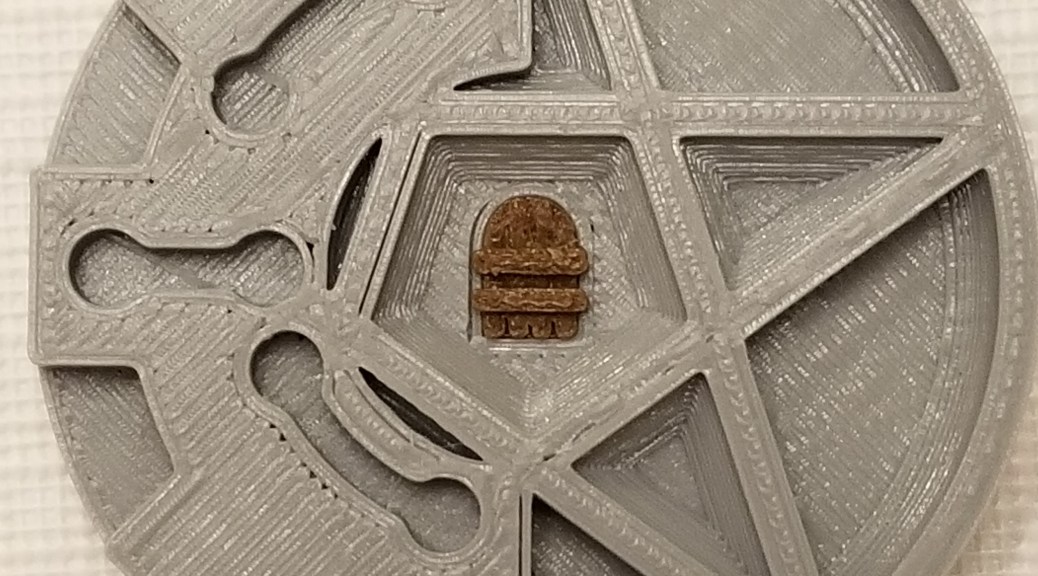
So, if anyone’s been paying attention, I’ve created a new logo for this site, based on a new maker coin that I designed.

For a brief explanation/history of these, here’s the guy who came up with them.

Video made by Maker’s Muse, please support his videos

It’s an object you can use as the equivalent of a filament swatch and to show people what 3D printing can make.  It’s helpful as a “1 standard print” for testing filaments, printer calibration, and slicer settings.

I thought it was about time that I made one of my own.  Then, through some manipulation in a couple programs, I converted it into a logo.  I think the symbolism is kinda obvious.  Technology + magic + a medieval wooden door = Technomancer’s Sanctum.

If you want to print one of your own, you can find it on Thingiverse here:

Technomancer’s Sanctum Maker Coin

This one I printed (in two pieces) on my replacement 3D printer, which finally arrived today!  Seems to work pretty well.  The parts printed fine on the first attempt, and the center door pressfit solidly into the coin!


In other news:

Borderlands 3 came out last week, so I’ve been playing that over the weekend, and having a blast.  I’m playing as Moze, so when the fecal matter hits the cooling unit I can jump into my mech and lay waste to my foes!  Still… in the words of the greenskins… NEED MOAR DAKKA!  I’m gonna have to see if I can fire more bullets per second.  I’m playing a gunner, after all.

I have business cards now!  I got tired of trying to find a scrap of paper to write down the web address for my blog when I get questions about my hobbies, so I’m now carrying some business cards wherever I go.  It should make it much easier to get the word out.

Project Update 08/07/19: Final Prototyping Stages

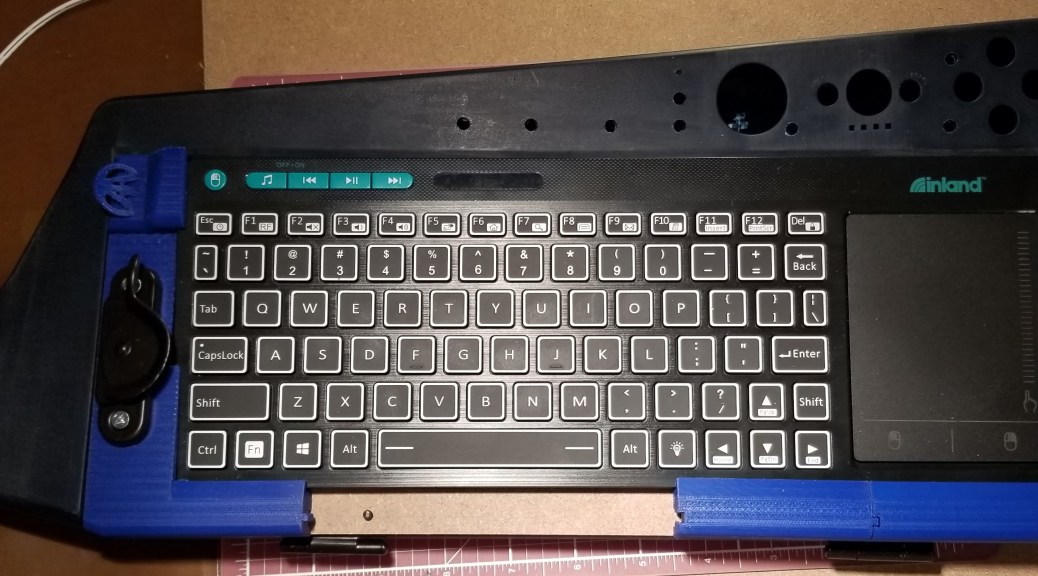
I think I’m about to the wrapping up point for the brackets on this thing.  As mentioned in a previous post, I’ve been working through a bunch of prototype parts, and enjoying learning more about Fusion360 in the meantime.  I haven’t figure out how to get a recording of it saved yet, but it has a feature where it can play through every change you’ve made to the model file from beginning to end.  Kinda cool to watch.  I’ll try to remember to post a video if I can figure out how to record and edit it.

Anyway, here’s where I’ve gotten to with some parts for test fitting:

20190807_211145.jpg

In the top left I wanted some sort of knob for grabbing the tray easier, so I mixed in the handle for one of the keys from Ready Player One.  Sadly, it feels too flimsy, so I’m not including it in the final model, and I think I can get enough grip on it without an actual knob.

20190807_211154.jpg

20190807_211210.jpg

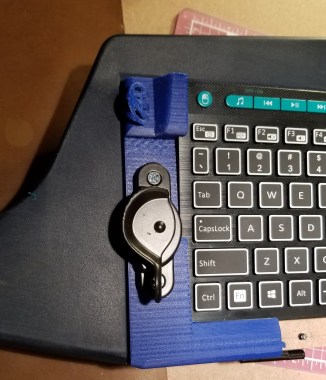
From this angle you can see the retaining nuts that hold the screws for the latch.

20190807_211223.jpg

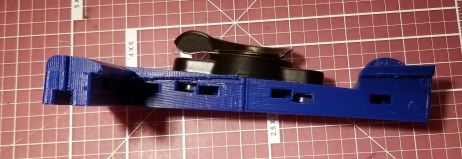
Here are the mounting holes for the bottom side.

20190807_211324.jpg

The parts on the left side of the keyboard are a slightly later generation of model than the ones on the right.  The left side ones are snap fit, whereas the ones on the right are loose.  I’m still figuring out tolerances with my printer.

I’m on what should be the last iteration of the parts, with some of the parts on the printer right now.  It’s gonna take a few nights of overnight printing to finish, but hopefully these will be the last ones, short of possibly a template for drilling the holes.

Hopefully I’ll get to the point of drilling holes, epoxying parts, and priming the whole rig soon.  This thing is coming together!


Assorted Updates:

A lot of stickers came in for me to put on the case.  Apparently there are pre-mixed sets of stickers for stuff like Ready Player One, so I may be making a whole collage of the back, just making sure to make the ones I specifically want show up on top.

I added a dimmable Ikea lamp to my workbench for a bit more light.  It can be hard to look at, so at the moment I’ve got some foil on there as a reflector and shade.

20190807_211437.jpg

I found some lettered sticky tabs, so I’ve started putting yet more tabs in my rulebooks so I can find things in the long lists in the rulebooks.  Now I should be able to look up monsters, spells, and magic items even more quickly.

20190807_204250.jpg

Tabs, for when you haven’t got time for a research montage mid-session.

Snapmaker 2.0 Kickstarter Kickoff

The Snapmaker 2 Kickstarter started this morning… and all the early bird specials sold out within minutes.  The whole thing was fully funded 10 times over in 10 minutes!

You can find it here:

Snapmaker 2.0 Kickstarter

Now we finally know the full specs, and pricing.  They are priced (with discounts) about where I expected them to be.

Sadly, I’ve been looking at my finances and to be a “responsible adult” I should probably wait until I know what a few upcoming expenses are going to be before I go spending that kind of money,  Especially since I missed the best specials.

Hopefully I’ll still be able to get this printer, as long as I’ve waited for it already.

Maker Workbench Inspiration

I think I’m going to find or make some signs with some of these quotes to put up around my workbench.  Here are some of the ones I’d most like to have:

“Sucking at something is the first step to being sorta good at something.”  ~Jake the Dog, Adventure Time

“Take chances, make mistakes, get messy!” ~Miss Frizzle, The Magic School Bus

“A journey of a thousand miles begins with a single step” ~Laozi, Chinese philosopher

“What’s the point of being grown up if you can’t be childish sometimes?” ~The Doctor, Doctor Who

“Any problem can be solved with a little ingenuity.”  ~Angus MacGyver, MacGyver


Technomancer’s New Worktable: Mk II

I quickly tired of the clutter, and I’ve always liked toolboxes.  I found this one at harbor freight:

tool chest

Eight Drawer Wood Tool Chest

I’ve seen it before, and the wooden toolbox had always reminded me of the custom toolboxes by dad made for his tools years ago.  I like the echo in style.

It’s felt lined, and I’ve tried to arrange the drawers and their contents similarly to how I had them laid out on the table.  The most commonly used tools are closest to the work area.  Tool trays I’m likely to use around the same time are next to each other instead of stacked, so they don’t obscure each other when open.  I’ll probably be rearranging for a bit as I get used to working with it.

Despite it’s size, it’s definitely freed up work space, and I like that it’s neat and organized.  If any family visits, most of the sharp objects that could be dangerous to kids are in one spot to be locked away from curious fingers.

Also, by collecting most of my tools into one toolbox I’ve made it that much easier for me to do demos for local groups or set up a table at a maker fair.  I’ll just have to throw the rest in there, then put the the toolbox and the 3D printer on a cart and roll it in, instead of making a bunch of trips for things.  If I need to bring my table, I can do that too, since it is portable.

I think this work area is really shaping up nicely.  Now I just need to get a steady build queue going and make the most of it!

Technomancer’s New Worktable

I got tired of trying to use my coffee table as a place to clean up my 3D prints, and I’m not a fan of bending over more than I have to.  Let’s just say I’m not a skinny technomancer, and it was getting to be frustrating with my work flow.  Also, I’m tired of cleaning off my makeshift workspace every time I want to have people over.

I did some searching on the websites for Home Depot and Lowes, and found an inexpensive folding table that was adjustable to a height for comfortable working on items while standing up, and the supports on the legs are high up enough that it doesn’t impeded my ability to use the chest I’ve placed it over.  So now, I have my worktable.

new-worktable-1.png

I apologize for the image quality, but I prefer not to show more of my home than necessary online, so I’ve removed the background.  A technomancer has to be careful about how much he reveals of his sanctum!

Anyway, I haven’t yet had time to make much use of this new setup, so we’ll see how it works.  A few notes about my setup, for those who might want to set up their own workbench:

In the center-ish area is the cutting board and magnifier, since this is what everything else revolves around.  Tools are mostly placed to the left, in order of how frequently I use them, with the most frequently used tools closest to the cutting board.

The lighting in that area of my home was not the best, so I have a desk lamp with the light pointed at the work space, since that is where I’ll need the most light.  The switch for the lamp is on the cable for the lamp, so I’ve wrapped enough of the cable around the base that the switch stays in a easy reach, rather than having to duck under the table every time I need it.  Hopefully there won’t be any induced current issues.

My Maker notebook is on the right.  I’m right-handed, so it’s a lot easier to write notes if i keep them on the right side of the work area.

In the upper right corner are some superglue, whiteout, and nail polish topcoat.  Glue for assembly, whiteout for either covering up mistakes on white PLA or being able to add some white to something printed in another color, and the topcoat is to seal in the ink on items that I have colored in with markers (usually my flatminis).

This is just my initial setup, and it will evolve over time.  As I’m writing this post I’m already thinking of things that I need to start storing on or near the table, and things I use infrequently enough that they don’t need to be on the table (they’re mostly there right now because I’m trying to clean up).  I’m also considering finding some sort of organizer or toolbox to more compactly store the tools within easy reach.

I am slightly concerned that this table won’t be stable enough in the long run, but I think where I’ve got it positioned against a wall should reduce any wobble.

I hope this gives you guys ideas about how you might setup your own hobby tables.

My First DRD: Roomba 690

A few weeks ago, I noticed that it was bugging me that the floors in my home were getting dirty.  I could swiffer and vacuum, but my energy was flagging, and I need to be mindful of when I vacuum so I don’t disturb the neighbors with my occasionally odd hours.  So, in true technomancer fashion, I delegated… and got a robot to do it.

Roomba 690 on Amazon

This vacuum uses multiple methods (sweeping, brushing, vacuuming) to clean my hardwood and carpet floors.  I still think the carpets could use some time with a real vacuum cleaner periodically, as I don’t think this vacuum is as powerful for getting stuff out from between fibers, but it definitely gets the visible dirt and small detritus without requiring me to do much more than push a button, whether it is on the Roomba itself or the app on my phone.  As long as I keep the floor picked up in my home, I can even get it to start vacuuming from anywhere I have cell service!

This thing even goes under my furniture to clean, making it so that I don’t have to move as much around or bend at uncomfortable angles to get the entire rooms.  It also came with a “Virtual Wall Barrier” tower, which makes the robot turn back before going into certain areas.  Since I only have one at the moment, I’ve set it to guard my 3D printer from being jostled unnecessarily.

Once it’s done cleaning the main room, it makes it’s way back to it’s base station and recharges, so I don’t have to go find it and plug it in myself.  When I have it clean side rooms, I have to pick it up and carry it back, but it’s still better than having to lug the regular vacuum around, and I spend less time having to vacuum it myself.  It takes longer to vacuum than vacuuming it myself, but my hands-on time is greatly reduced.

I’ve noticed that it has improved my mood to have the floors cleaned more regularly, and I feel like I’d be more confident in inviting people over for game nights on shorter notice, as I don’t have to spend a bunch of time cleaning the floors in addition to all the other chores of cleaning.  I can multitask with the Roomba cleaning the floor while I still handle the other things that require manual work (for now).

Now, if only I could find a skin to make it look like a Farscape DRD…

Monoprice Select Mini Pro 3D Printer

Last week my Colido DIY 3D printer failed again, and I got fed up with it, so I decided to order a new 3D printer.

I used the method that I’ve mentioned before in a post and recently added here:

3D Printer Shopping

I wanted a replacement printer that would suit my normal prints: small items for tabletop games.  I wanted something more reliable/easier to run than my Colido DIY.  I also didn’t want it to be too expensive, particularly as the Snapmaker 2 Kickstarter is upcoming.

After going through all of this, I settled on the Monoprice Select Mini Pro (I’ve linked to the company website, but I bought it through Amazon).  I had heard people say good things about them, and I did some poking around.  I particularly liked that it was effectively version 3 of a standing line of 3D printers, which bodes well for it having a lot of the issues worked out.

Here’s what I’ve noticed so far:

Calibration:

This printer being preassembled and precalibrated is working out really well so far.  I’ve been getting better print quality and consistency with this printer than I did with the Colido DIY that I built myself.  I’ve been able to print things I wouldn’t have dared attempt on the old printer, partly due to quality issues, and partly because the printer had the tendency to fail catastrophically in a couple different ways.

The self-levelling feature saves me a lot of effort trying to figure out how to adjust the printer.  No more turning the z-axis direct drive screws and setting the z-axis stop screw.

Bed:

The metal print bed is rigid and coated, so it should be less prone to gouging and possible warping than the plastic bed I’m used to.

Unlike the previous printer, this one has a heated print bed, which I’ve had no prior experience with,  This will be a learning experience, and broaden my knowledge base.

This bed being coated means I’m not going to have to keep maintaining a layer of painter’s tape.  However… it might be holding too well.  I don’t know if I’ve got something set incorrectly, but it is really difficult to remove prints from the print bed, even with a raft attached.  I’m asking questions in some 3D printing circles to see if I can make it release easier.

Bowden Tube:

I’ve never used one of these before.  This is a tube that directs the filament in a more consistent manner to the print head.  I’m still unsure how I feel about this thing.  I worry that it’s adding another location that could get clogged.  It does make it so that I don’t have to worry about where the path of the filament is too much.

Wifi:

This thing is wifi-enabled!  I don’t have to carry a flash drive or SD card from one room to another to print files, though there is still the option for micro-SD cards and plugging a computer in via micro-USB.  I can even set the extruder and bed temperatures remotely, and tell the printer to print the file after I transfer it over the wifi.  I will note that I’ve had some issues with failed file transfers, which requires power-cycling the printer itself, and reattempting the transfer until it works.  It’s annoying, but not a huge issue so far.  Hopefully a firmware update will help with this.

Be careful to make sure there isn’t something already on the printer when you transfer a file.  Sometimes the printer appears to start a new print as soon as you transfer the file, without clicking the Start Print button.

Headless printing:

This thing can run itself entirely independently, without needing a computer attached to it.  This alone has drastically improved my setup, as I don’t have to have a computer within cable reach of the printer.  No more worrying with an old laptop!

Since there is no computer directly plugged into the computer, you use the onboard touchscreen to control the printer (unless you want to plug a computer in, but that is optional).  This touchscreen can be a bit finicky, but it is nice being able to give commands directly to the printer.  However, there are a couple issues:

  • When a print is finished, the button to return to the main screen is NOT visible.  You need to tap on the right side of the screen, and you will find an invisible home button.
  • PRESSING THE PAUSE BUTTON DOES NOT IMMEDIATELY PAUSE THE PRINT. So, watch out for that if you are trying to stop in an emergency.  You might need to kill the power with the switch on the back of the printer.  So far I’ve only needed to use it once, when I accidentally triggered a movement sequence while there was a print still on the printer.

Slicing:

Slicing software comes with the printer.  It was Cura, if I remember correctly.  However, I use Simplify3D, and they already have a profile from previous iterations of the printer!  I’m continuing to use it to slice my files, and this time I’m trying to apply some lessons learned from previously,  I’m making different printer profiles for different PLA filaments, since they have different temperature ranges.  I used to use one profile for all, and that caused issues with prints because the filaments that you would think only differed in color would not behave the same for the same temperatures.  I’m building these profiles as I go along, based on my tweaks on the default settings for this printer.


Summary:

Overall, this printer appears to be a vast improvement over my previous one.  I think this one might even be stable enough to let it print semi-unattended.  The print quality seems so much higher that I might even be able to start printing more standard-style minis, once I tweak a bit more.  It could use a more detailed manual, though.  It’s rather short, and I’m having to poke around various sources for guidance.

Snapmaker 2 Kickstarter Upcoming!

(Note:  I’ve updated this article after it’s original posting, due to updates in information and in my own setup)

Update 05/04/2019:  Kickstarter countdown is ongoing.  Countdown clock till launch is here:

Snapmaker 2 Kickstarter Countdown

Back to the article:

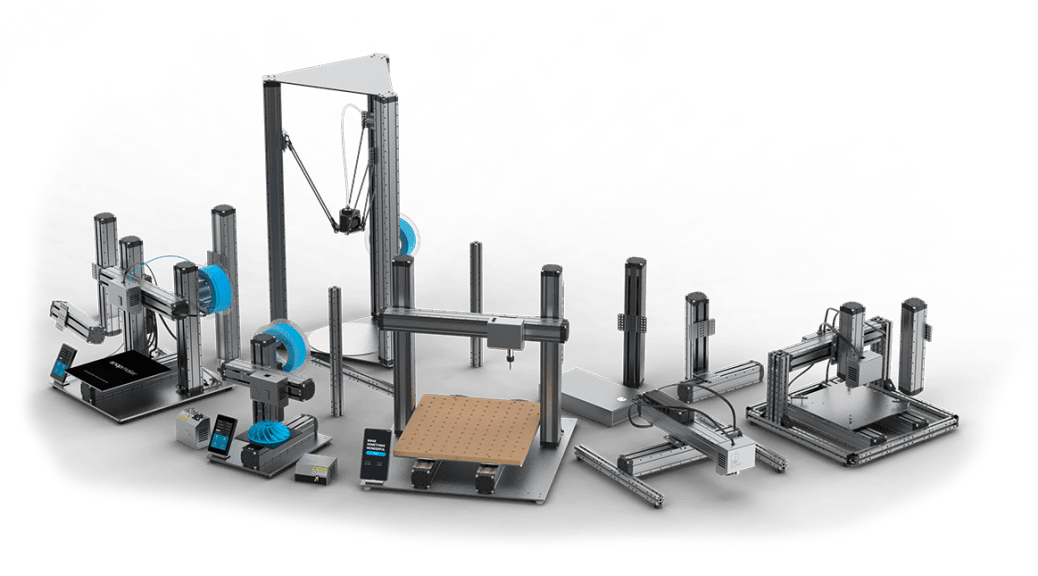
As I’ve mentioned in a previous post, the Snapmaker 3D printer is a combination 3D printer, laser engraver, and CNC milling machine.  As I said at the time, the original model is smaller than my Colido DIY and would have required me to downsize my printable area (assuming I was replacing rather than supplementing the printer).  I had also gotten the impression that a 3D printer with a single z-axis column can be prone to having vibration issues.  They had teased an image of a two column model that they were going to release down the road, but they had not provided a lot of information about it.

Well, that’s changed.

Somewhat recently they announced an upcoming Kickstarter campaign for the Snapmaker 2.  The Snapmaker 2 is their blanket term for their next generation, which has upgraded components across the board.  It also includes three sizes of printers you can get.

The three sizes have the following print areas:

  1. Small:        165 mm W x 170 mm D x 145 mm H (at least 5.7 inches on each side)
  2. Medium:   230 mm W x 265 mm D x 240 mm H (at least 9.05 inches on each side)
  3. Large:        330 mm W x 365 mm D x 335 mm H (at least 12 inches on each side)

As you can see, the larger two sizes have the two column design I want, which should be more stable and provide the larger build area I need for some projects.  I haven’t decided which of those two I’ll eventually want, but I’m pretty sure I’m going to be getting one of those two at some point.  There are all kinds of projects you can do with a print volume that size.

This new generation appears to be loaded with features, including auto-leveling, wi-fi control, filament sensors, power-loss detection and recovery, and more.  There are also a number of improvements on the implementation of the original Snapmaker’s features.  That’s a hell of an improvement over my Colido DIY which was almost completely manually operated, and a couple steps beyond what my new Monoprice Select Mini Pro has.   I look forward to being able to get more reliable large prints that I can run wirelessly and not require a computer to be plugged directly into it.

I’m looking forward to learning more, and hopefully getting my hands on one of these sturdy multipurpose fabbing machines.  Gonna get busy building with one of these!

Since the original publication of this post, the Snapmaker Team has been in touch with subscribers to their newsletter, giving us previews of the features and asking us whether we would be satisfied with the features and improvements they displayed.  I highly recommend subscribing to their newsletter if you want to keep in the loop on the Snapmaker 2.


While you are here, please take a moment to glance at the other parts of my site.  You may find even more useful information related to our shared interests here!